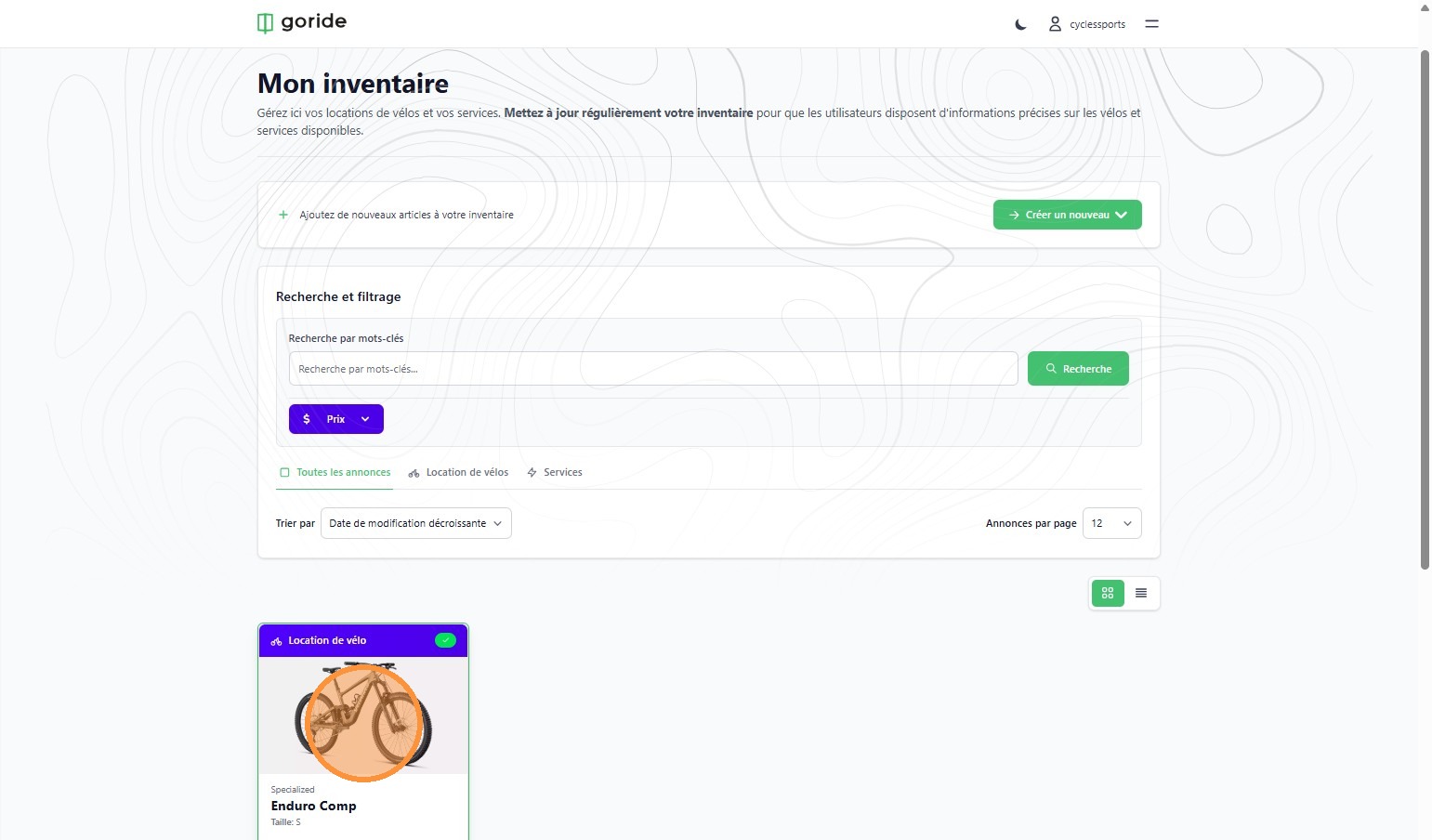
Learn how to effectively add a new bike rental entry to your dashboard. This guide walks you through uploading bike details, setting rental pricing, and publishing your new listing for customers.
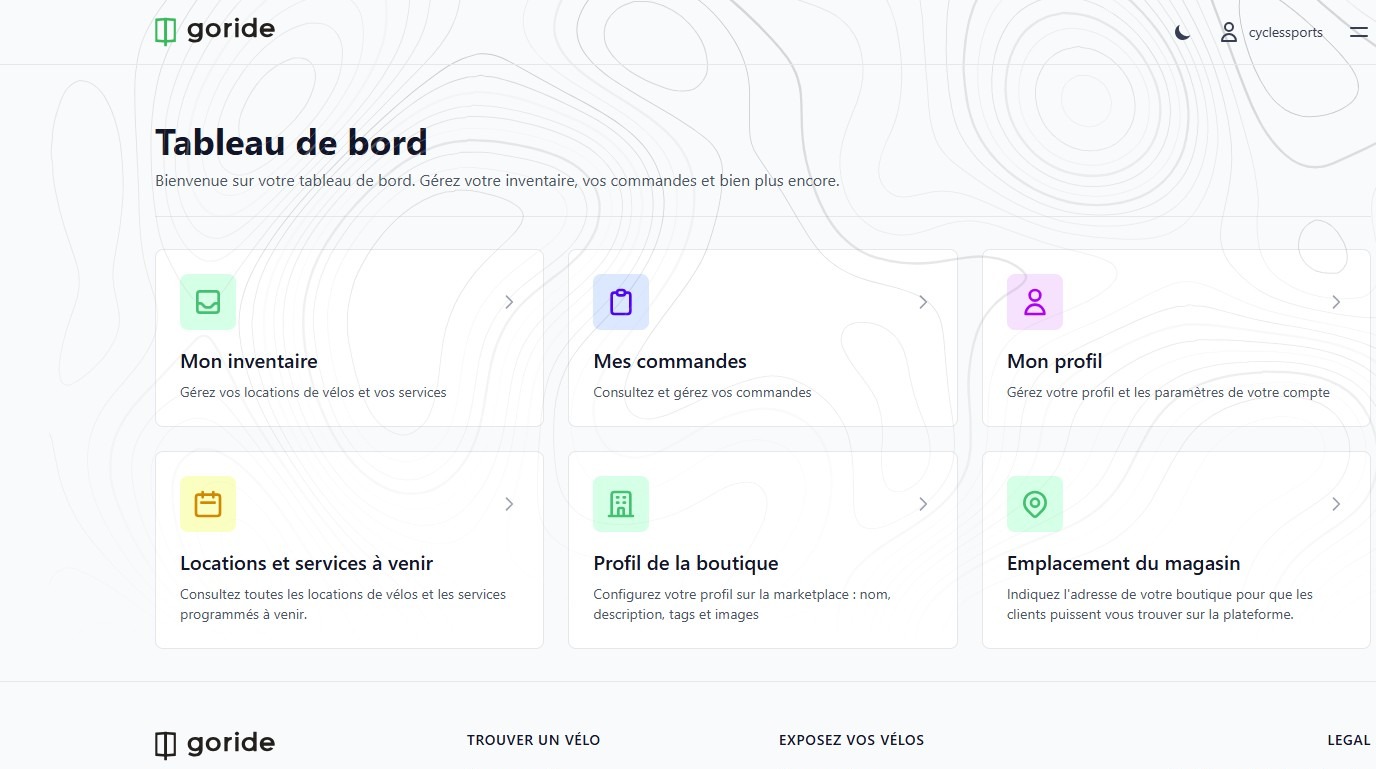
1. Start from your dashboard
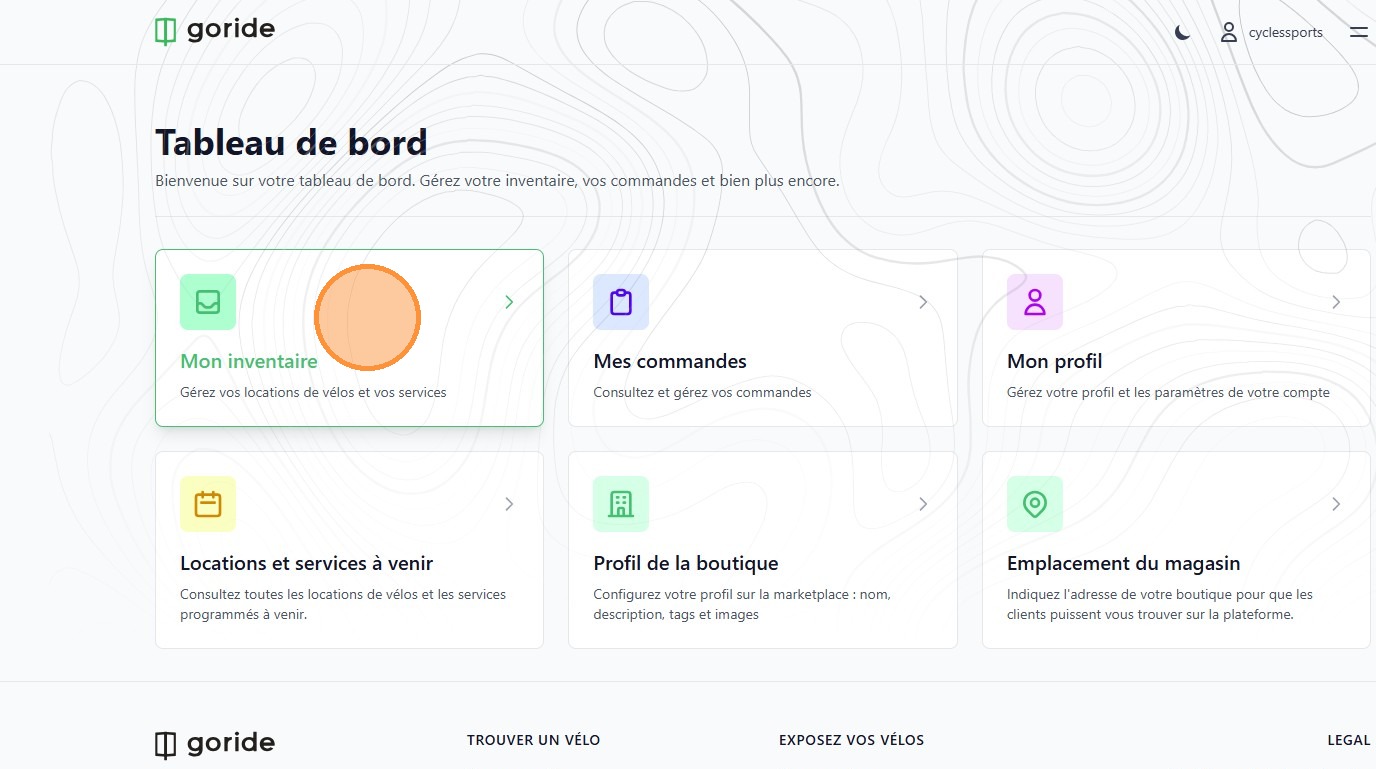
2. Click here.
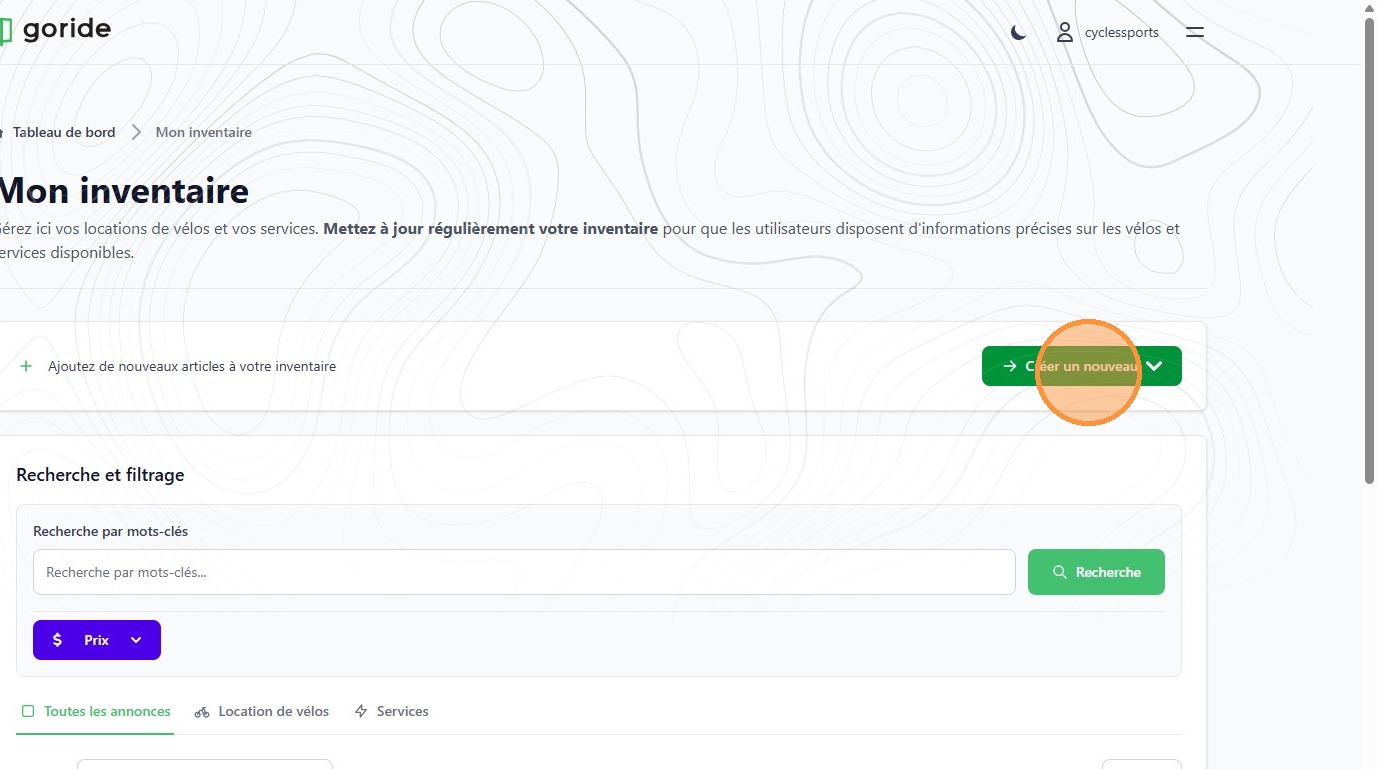
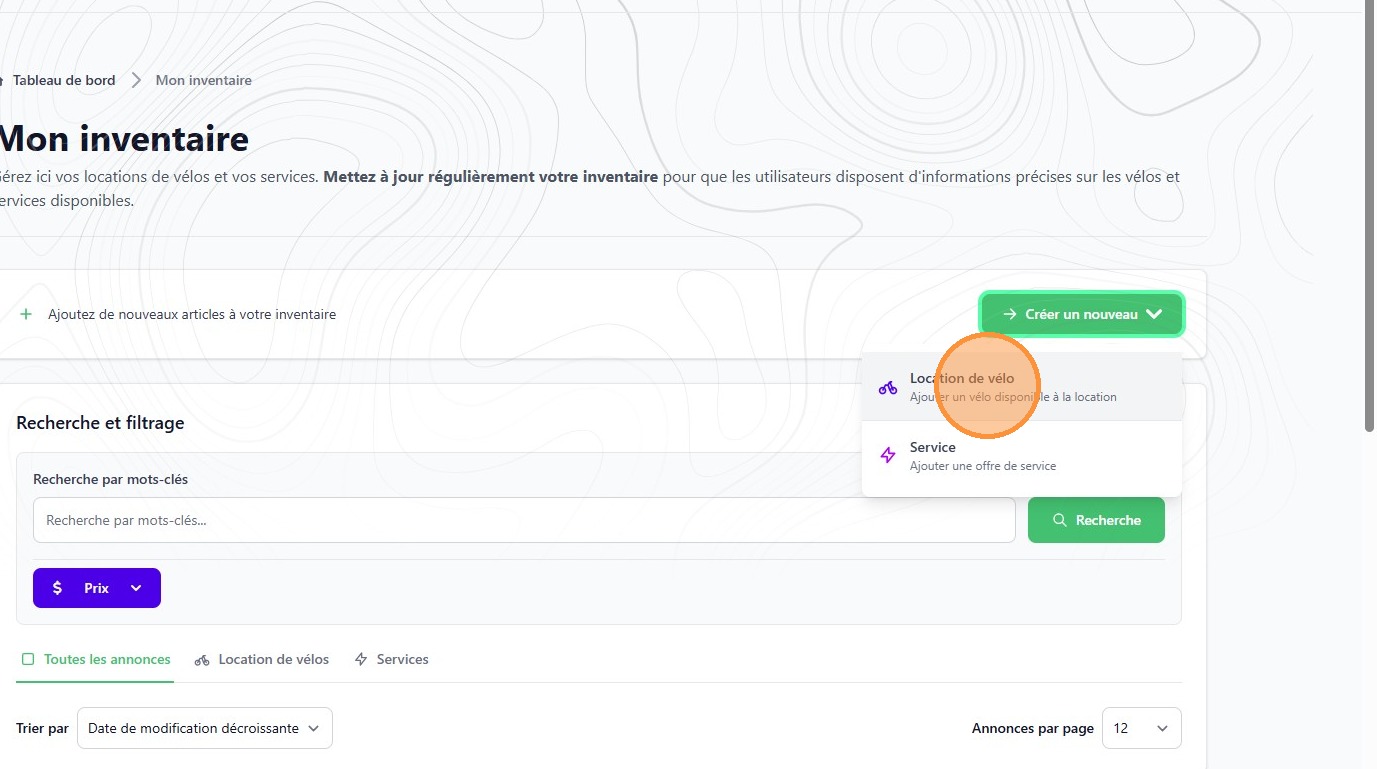
3. Click "Créer un nouveau"
4. Click "Location de vélo"
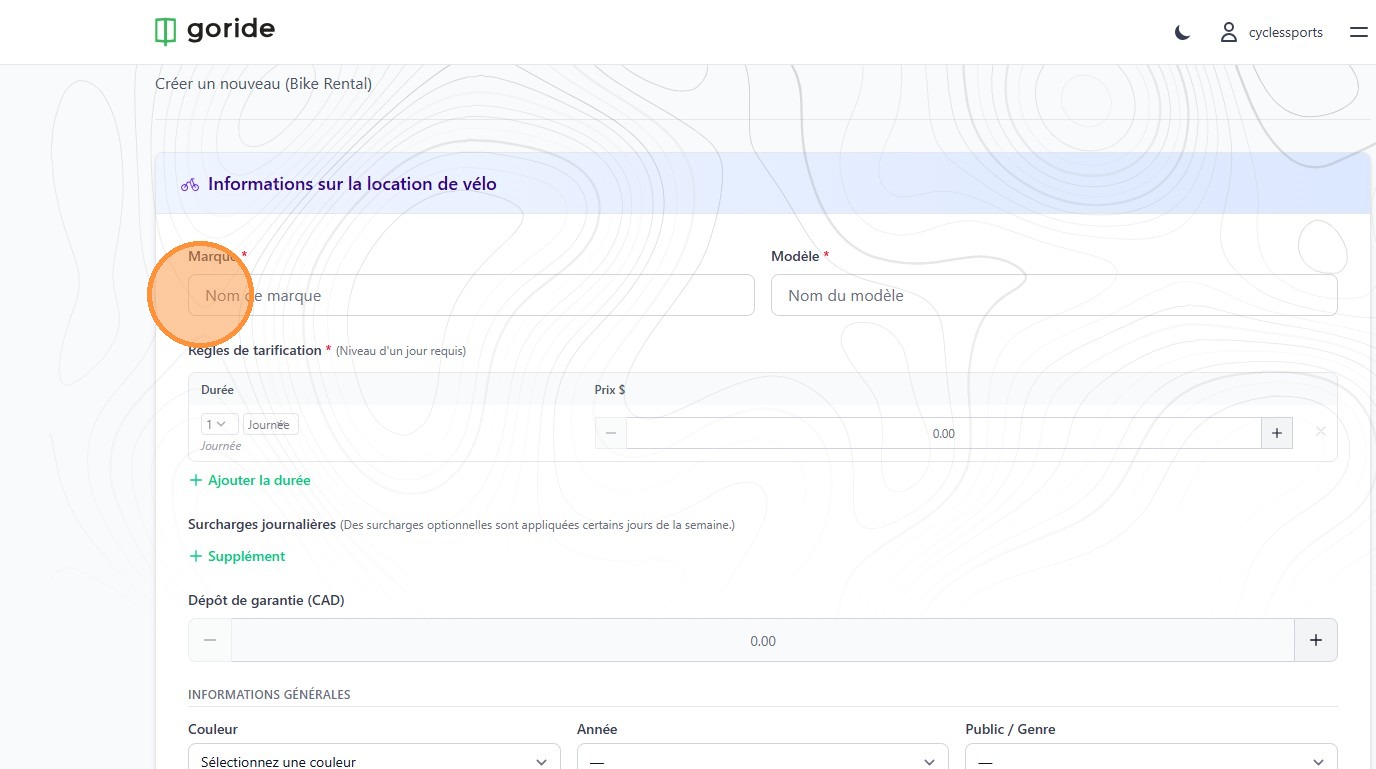
5. Fill in the required information
Here is an example of a prompt you can use:
You are an assistant specialized in extracting structured data for bicycle rental product listings.
From the following URL: ADD THE MANUFACTURER'S URL HERE
Fully analyze the product page (titles, descriptions, specification tables, images, metadata) and extract all the information necessary to create a product listing on the GoRide platform.
Return the information in a structured format with the following fields:
General Information
Brand
Model
Color – Year
Target audience / Gender (unisex, men, women, or children)
Weight (kg)
Electric bike (yes or no)
Size and Geometry
Frame size
Wheel size
Recommended rider height
Frame material
Drivetrain
Number of speeds
Rear derailleur
Front derailleur
Cassette / cogs
Suspension and Comfort
Front suspension
Rear suspension
Front travel (mm)
Rear travel (mm)
Dropper seatpost (yes or no)
Brakes, Wheels, and Tires
Brake type
Tire type
Tire width
Tire condition
Category
Identify all applicable categories (Road, Gravel, Hybrid, Kids, Track, XC, Enduro, Downhill, Fat Bike, Electric Bike)
Electrical Specifications
Provide this information only if the bike is an electric bike.
Motor power (W)
Motor torque (Nm)
Battery capacity (Wh)
Estimated range (km)
Description
Marketing-oriented bike description without overly repeating the technical specifications listed above. Emphasize the bike’s key attributes, its intended audience, and its recommended use cases.
Missing Information
Explicitly list the fields that are not available on the source page
⚠️ If a piece of information is not explicitly stated, leave the field empty or indicate “Not specified”.
⚠️ Never guess or infer unreliable values.
⚠️ Prioritize the accuracy of technical specifications.
The output must be clear, structured, and ready to be entered manually or copy-pasted into GoRide.
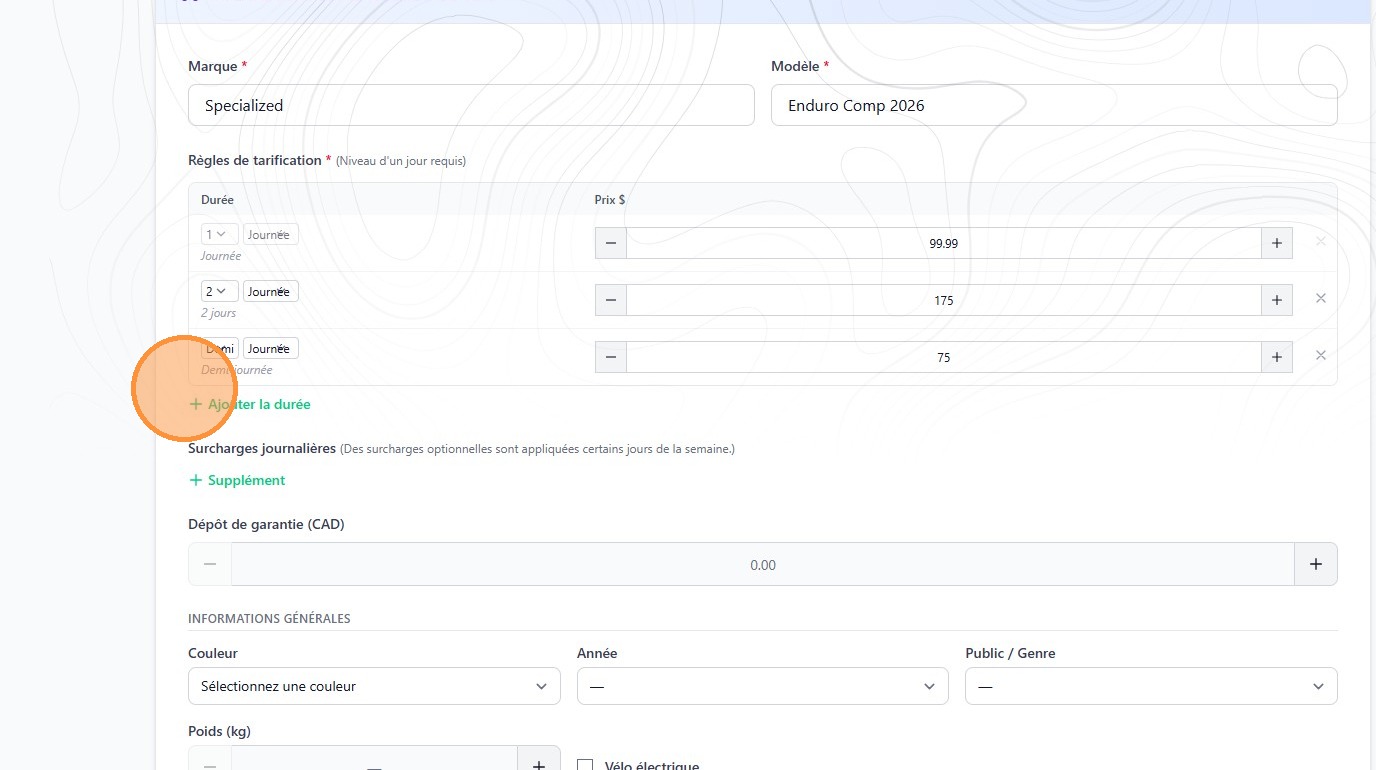
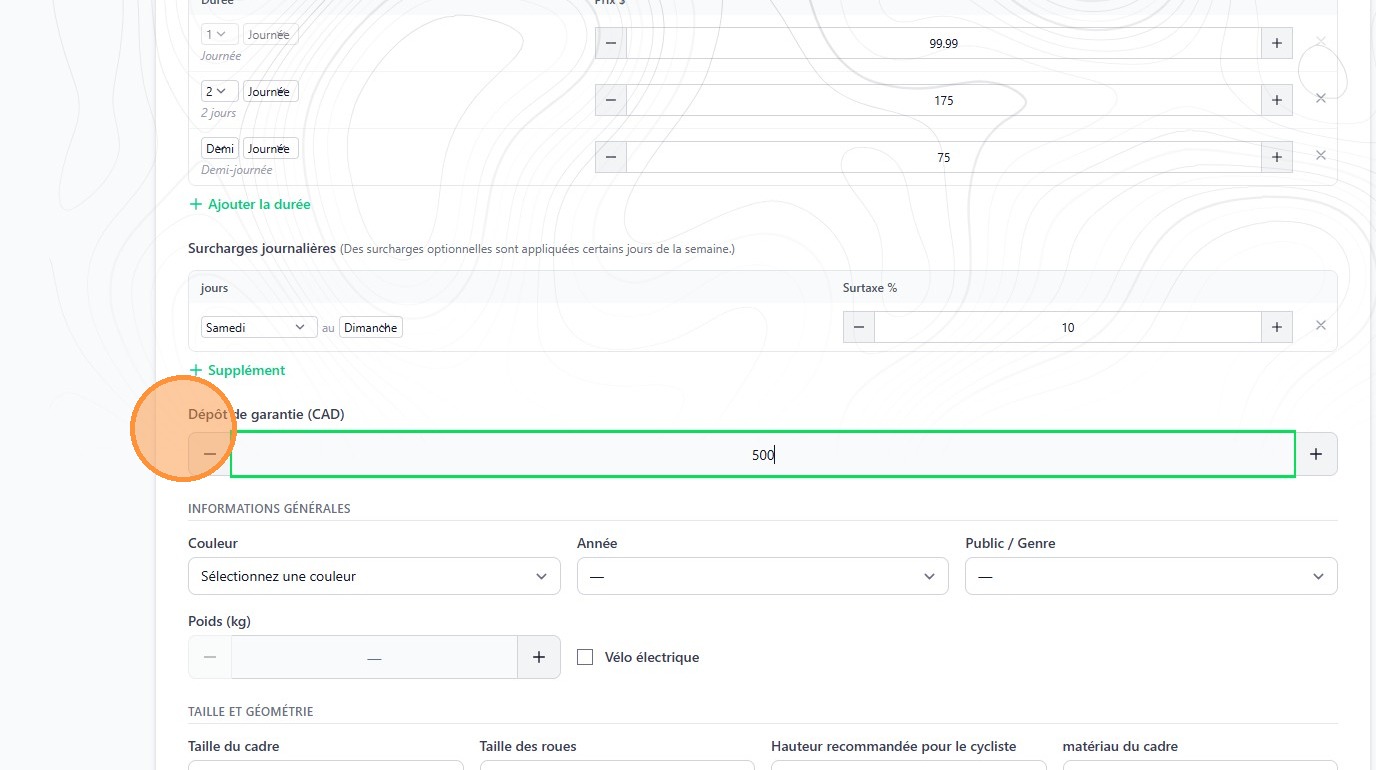
6. By default, you must set the price for a 1-day rental. In this section you can add half-day or multi-day pricing.
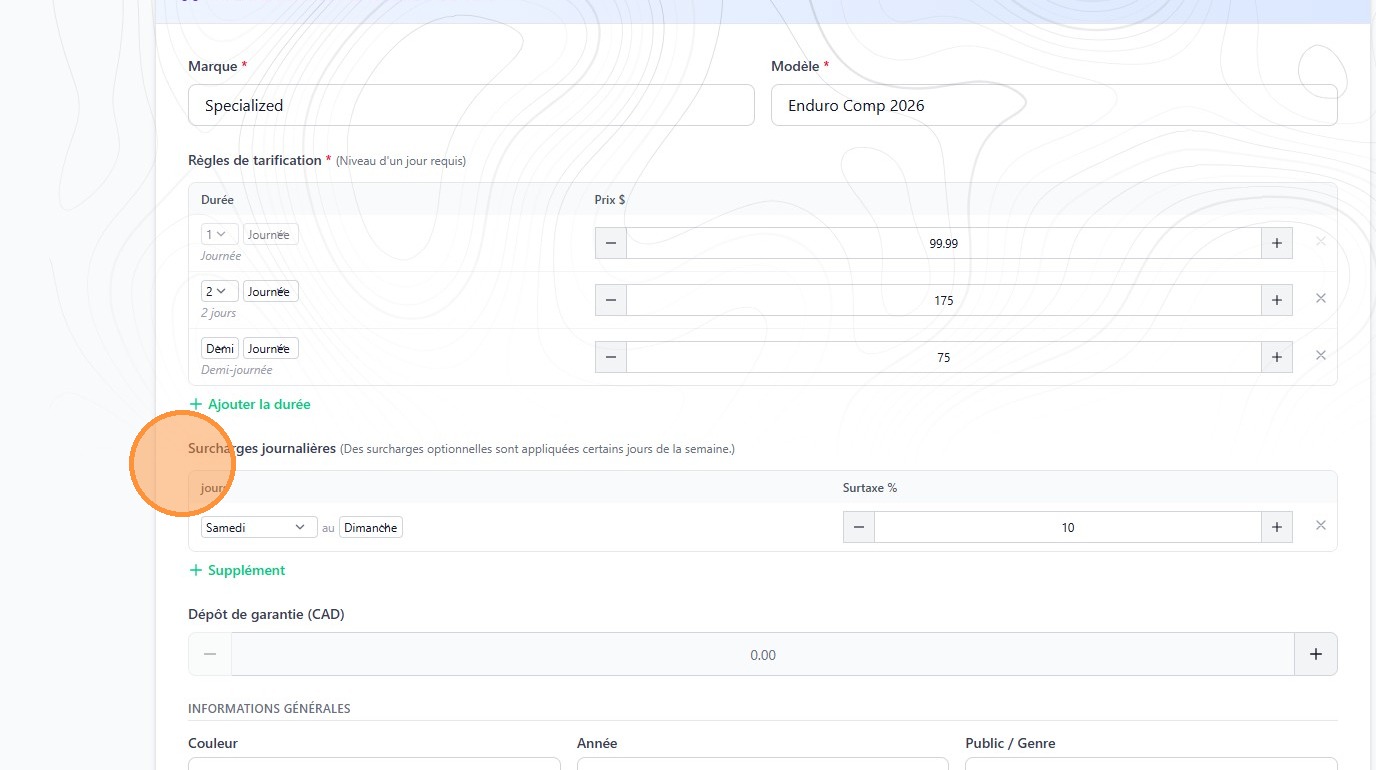
7. You can also set price premiums for certain days of the week. For example you could decide to charge 10% extra on weekends.
8. If you require a security deposit for the rental, indicate the amount here
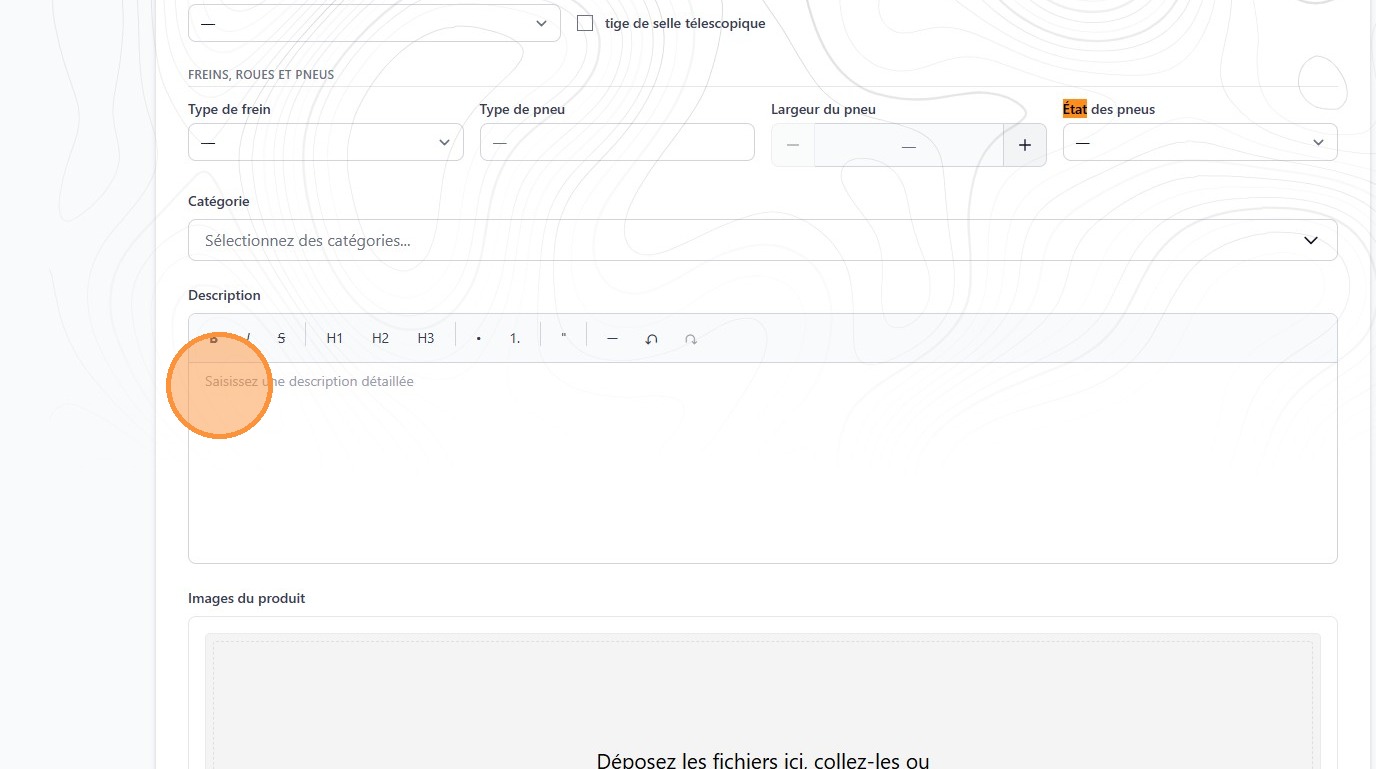
9. Add a product description
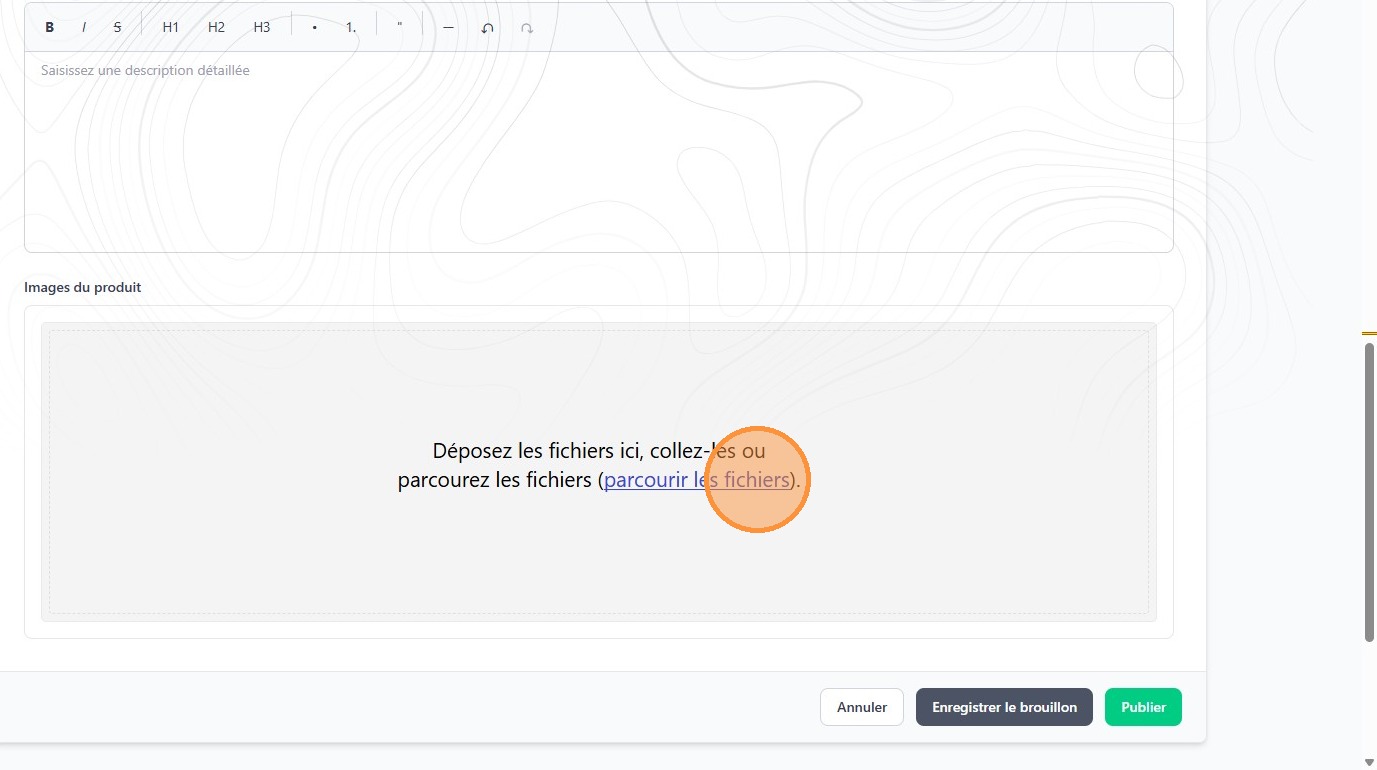
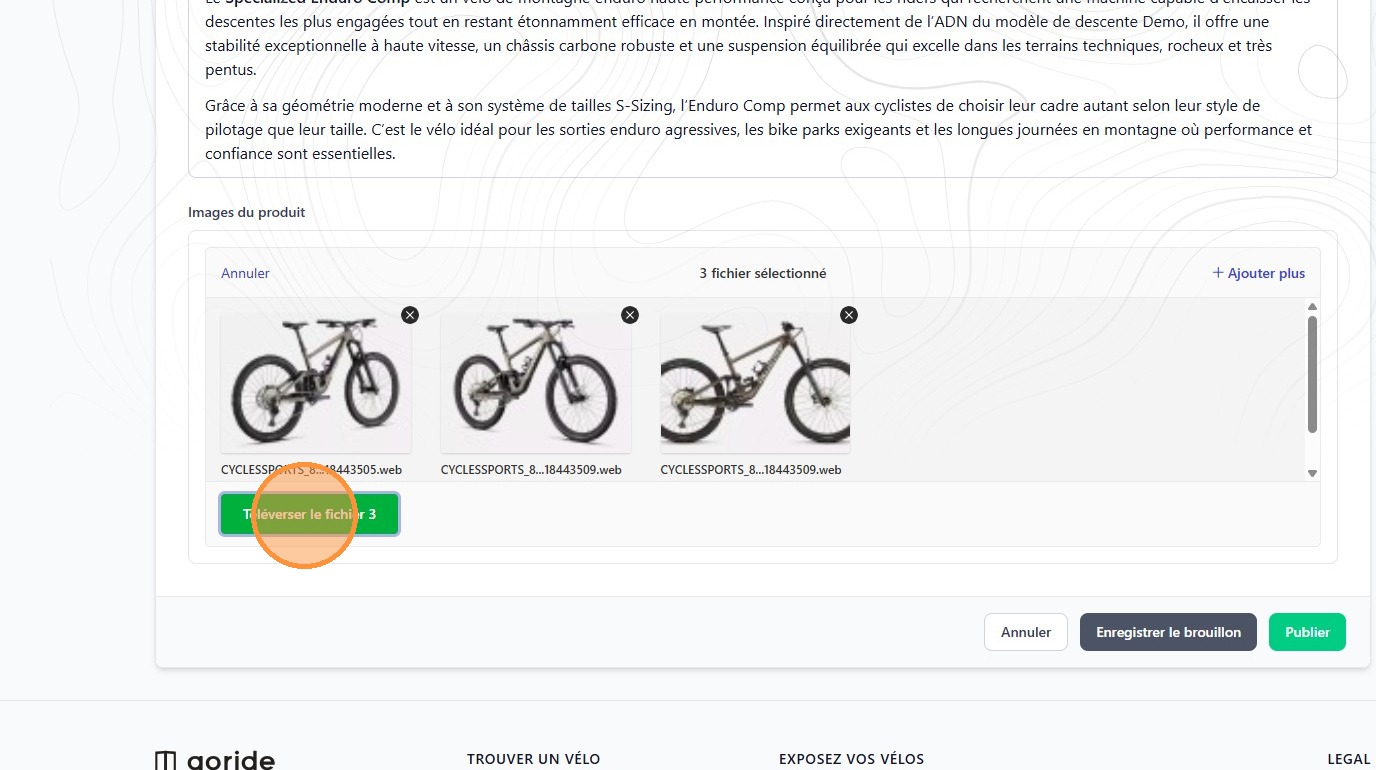
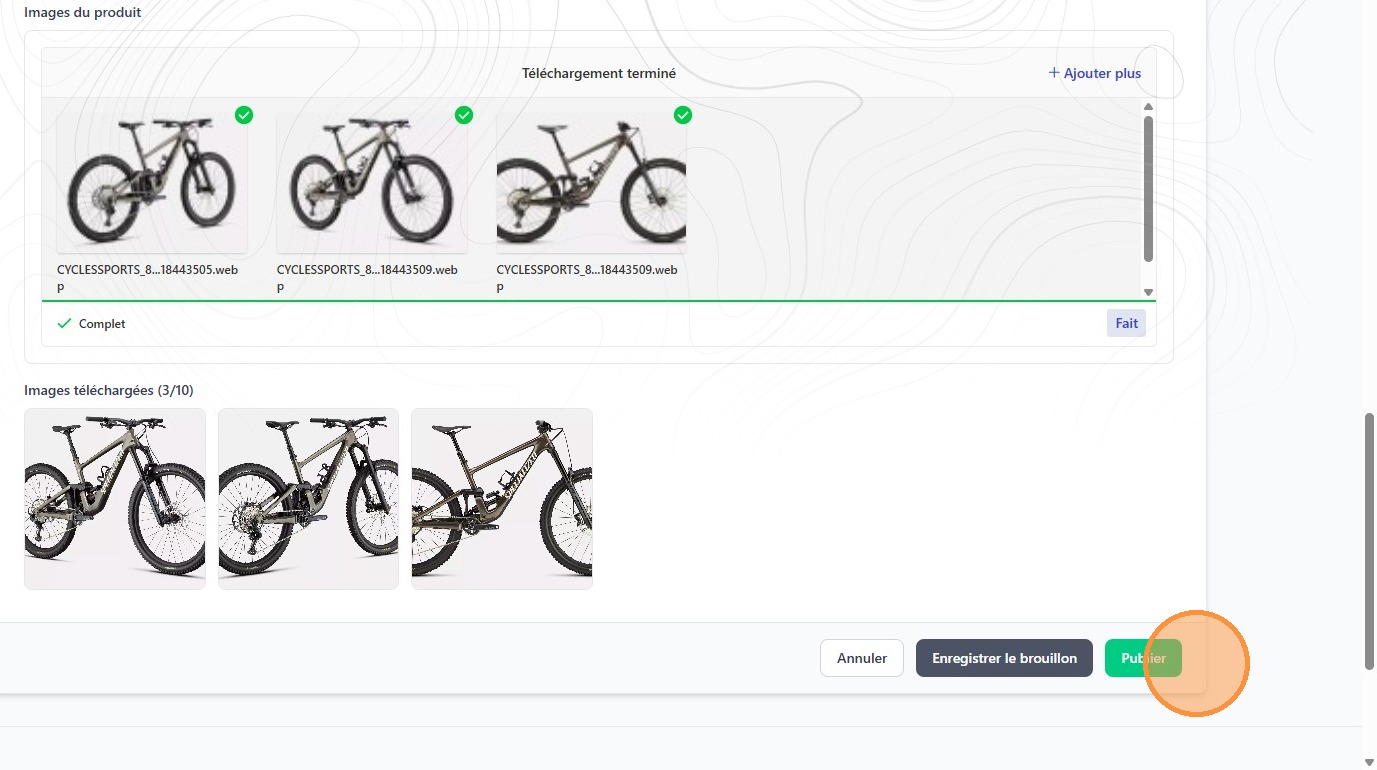
10. Add product images. We recommend either using your own pictures, or images from the manufacturer's website.
11. Click "Téléverser le fichier"
12. Click either "Annuler, Enregistrer le brouillon or Publier"
14. The product you just created will appear in the inventory section of your dashboard.